Penalty box for R81.20
R81.20 reference guide:
https://sc1.checkpoint.com/documents/R81.20/WebAdminGuides/EN/CP_R81.20_CLI_ReferenceGuide/Content/T...
Important SK for R81.20: https://support.checkpoint.com/results/sk/sk112454
fwaccel dos pbox allow -a 10.0.0.0/8
Add the ranges you wish that will not be blocked by the pbox. This should always be the first step.
fwaccel dos pbox allow -s
Check if the whitelist is correct. Make sure all IP ranges that you want to whitelist from this feature are on this list.
fwaccel dos pbox -M on
With this you enable the monitor only mode (no drops). If you set -M off it will change to drop mode depending if pbox is enabled (see command below)
I advise to start couple days in monitor mode and keep a close eye on traffic logs. Make sure to enable the pbox and before that set in -M on mode then only pbox is active in monitor mode.
fwaccel dos config set --enable-pbox
Enable the pbox
fwaccel dos config set --enable-log-pbox
Enable pbox logs.
fwaccel dos config set --pbox-rate 1000
You can change the default value from 500 to 1000.
fwaccel dos config set --pbox-tmo 300
Configure how long a bad IP will be on the pbox timeout bench
fwaccel dos config set --notif-rate 10
Change the default value of 100 to 10. Penalty box will log maximum 10 log entries per second.
fwaccel dos config get
Check the config after the changes are done
fwaccel tab -t dos_pbox -f
Check what IP’s are in the pbox
fwaccel tab -t dos_pbox_violating_ips -f
Here you can see all the IP’s that the firewall keeps track if they will reach the --pbox-rate 1000 value
Example of above command:
Table: dos_pbox_violating_ips
Total number of entries: 1453
47.84.X.X, Violations/Second: 18
91.196.X.X, Violations/Second: 12
69.5.X.X, Violations/Second: 1
fwaccel dos stats get
Firewall Instances in Aggregate:

    Memory Usage:
    Total Active Connections:  (FW connection limiting inactive)
    New Connections/Second:    (FW connection limiting inactive)
    Number of Elements in Tables:
        Penalty Box Violating IPs:                  1914
        Rate Limit Source Only Tracks:                 0
        Rate Limit Source and Service Tracks:          0
        Rate Limit Dest Only Tracks:                   0
        Rate Limit Dest and Service Tracks:            0
SecureXL:
    Memory Usage:
    Packets/Second:                    (rate limiting inactive)
    Bytes/Second:                      (rate limiting inactive)
    Reasons Packets Dropped:                  Monitored Only:
        IP Fragment:                0                               0
        IP Option:                  0                               0
        Penalty Box:        311092570                       886119016
        Deny List:          0                               0
        IOC Deny List:              0                               0
        Rate Limit:                 0                               0
    Number of Elements in Tables:
        Penalty Box IPs:                               2
        Deny List IPs:                                 0
        IOC Deny List IPs:                             0
        IOC Monitor-Only IPs:                          0
        IOC External Deny List IPs:                    0
        IOC External Monitor-Only IPs:                 0
        Rate Limit Matches:                            0
        Rate Limit Source Only Tracks:                 0
        Rate Limit Source and Service Tracks:          0
        Rate Limit Dest Only Tracks:                   0
        Rate Limit Dest and Service Tracks:            0
Some numbers what the pbox is doing etc
Make sure if file below is active to make sure changes are reboot proof! (only R81)
vi $FWDIR/conf/pbox-allow-list-v4.conf
User VI editor and add the ranges 10.0.0.0/8
chmod +x $FWDIR/conf/pbox-allow-list-v4.conf
Same for the config file! Also check if all changes are in this file. Firewall will check this file after reboot.
vi $FWDIR/conf/fwaccel_dos_rate_on_install
Example config
[Expert FW:0]# fwaccel dos config get
  rate limit: enabled (without policy)
    rule cache: disabled
          pbox: enabled
     deny list: disabled (without policy)
    drop frags: disabled
     drop opts: disabled
      internal: disabled
       monitor: disabled
     log drops: disabled
      log pbox: enabled
    notif rate: 10 notifications/second
     pbox rate: 500 packets/second
      pbox tmo: 300 seconds
How to search for PBOX drops in SmartConsole.
In config you can see 2 lines that can be adjusted for logging:
log drops: disabled
log pbox: enabled
log pbox is the first SmartConsole log entry that is made after the first the an IP is added to a PBOX.
The log pbox shows all logs that occur after IP is added to pbox. notif rate parameter changes thi
Screenshot how it looks in Smart Console:
Log drops:
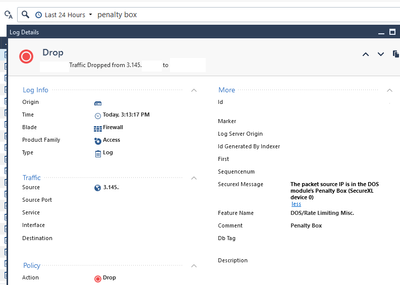
Pbox drops: (are difficult to find, but they are there, I use these filters:

Penalty box for R82
R82 referene guide: https://sc1.checkpoint.com/documents/R82/WebAdminGuides/EN/CP_R82_CLI_ReferenceGuide/Content/Topics-...
Important SK for R82: https://support.checkpoint.com/results/sk/sk182350
For R82, config is a bit different. I pasted example config below. Also the reboot proof items you do not need to check anymore.
fwaccel dos pbox allow -a 10.0.0.0/8
Add 10/8 to whitelist
fwaccel dos pbox allow -s
Check if above whitelist changes are done correctly
fwaccel dos pbox -M on
Enable pbox in monitor mode
fwaccel dos pbox -c
Check if all config is set correctly
fwaccel dos pbox -E on
Enable pbox feature
fwaccel dos pbox -G on
Enable pbox logs
fwaccel dos pbox -P 1000
Change from default 500 packets to 1000
fwaccel tab -t dos_pbox_violating_ips
Extra R82 command:
fwaccel tab -t dos_ip_deny_lists
Note this one does not work for R82: fwaccel tab -t dos_pbox -f
R82 config example:
[Expert@]# fwaccel dos pbox -c
Penalty Box:
    Status                            on
    Internal Interfaces               off
    Monitor-Only                      off
    Log Drops                         on
    Max Notifications Per-Second      10 logs/second
    Send TCP Reset                    off
    Timeout for Blocked IPs           360 seconds
    Has Blocked IPs                   yes
    Log when a new IP is blocked      on
    Drop rate to trigger on           500 packets/second
-------
Please press "Accept as Solution" if my post solved it 🙂