Hi there, in this post we’re going to deploy Check Point Remote Access, using LDAP and Check Point database for user authentication. This lab we’ll be running on VMWare workstation (CMA/SMS R81) and eve-ng community edition (Gateways-R80.20 and clients running windows 8).
This lab assumes your already have a topology running, so I won’t be covering how to set up this lab.
The goal is to deploy remote access, for users that are part of a group (Department) in AD and also allow access for users that don’t belong to any group in AD. This is useful, for situations where your AD is unreachable and you still want to allow access to a certain group of users.
One of the features that will help us meet this goal, is Identity Awareness. If you would like to learn how to enable it, read my previous post How “To's - Deploy Check Point Identity Awareness”.
Now let’s begin by creating an LDAP Group. This will allow us to filter access based on user group.
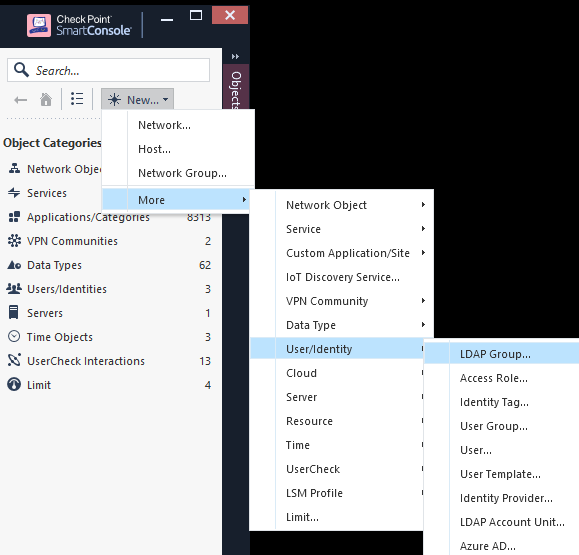
In side panel go to New > More > User/Identity > LDAP Group
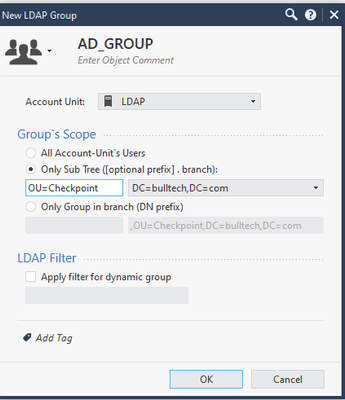
We’ll select the existing Account Unit, and choose either All Account-Unit’s users or you can specify a specific branch in AD (Organizational Unit).
As we already have a group of users from AD, we’re going to create two users as a backup option in case the AD becomes unreachable.
In side panel go to New > More > User/Identity > User…
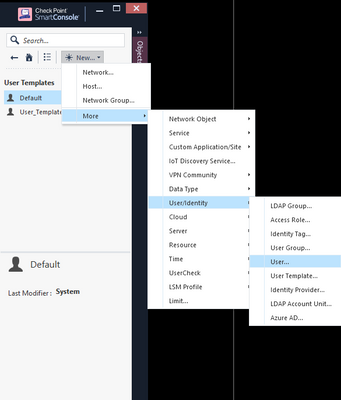
For template we’ll choose Default.
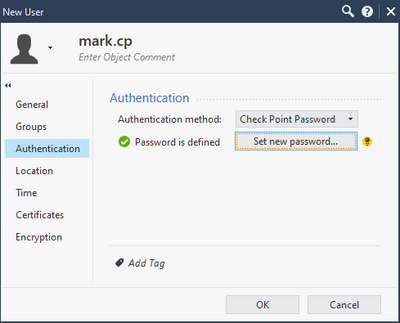
Set the username and the password in Authentication tab.
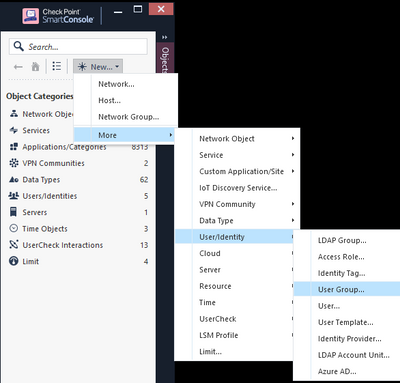
Now let’s create a user group for all users that require remote access.
In side panel go to New > More > User/Identity > User Group…
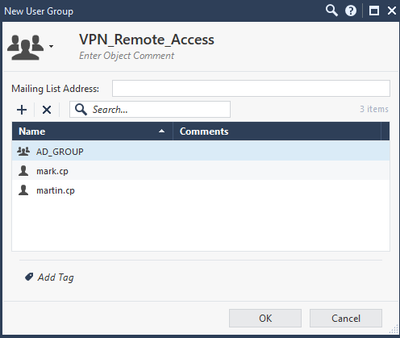
Set the name, and add AD_Group and both users.
The user part is completed, now let’s configure the VPN part.
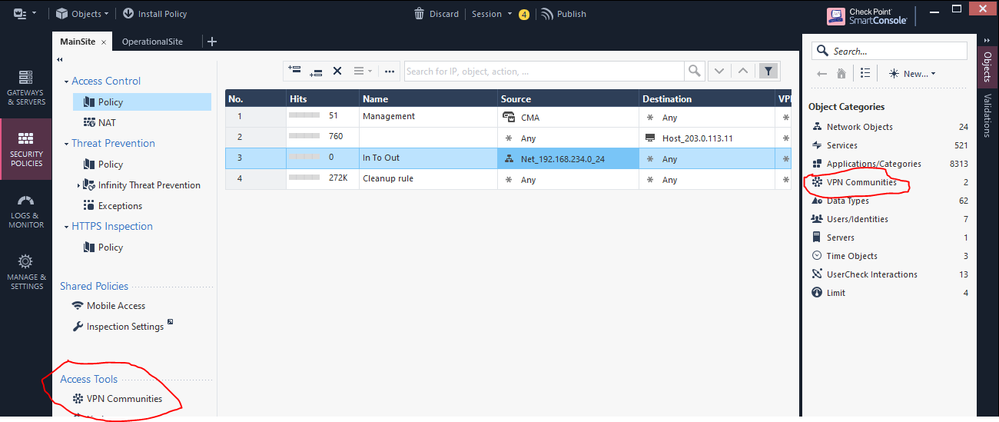
By default Check Point allows remote access to all users. Let’s filter this access by specifying the user group created in the VPN Communities object.
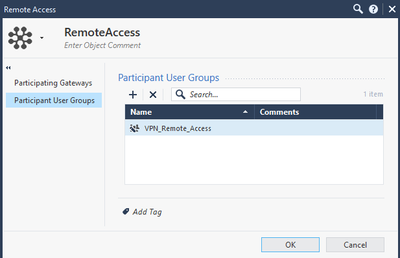
Let’s edit the Remote Access object, in Participant User Groups, add the user group for Remote Access.
Now let’s enable VPN remote access feature by editing the gateway cluster object. Select Mobile Access and a new window will pop up.
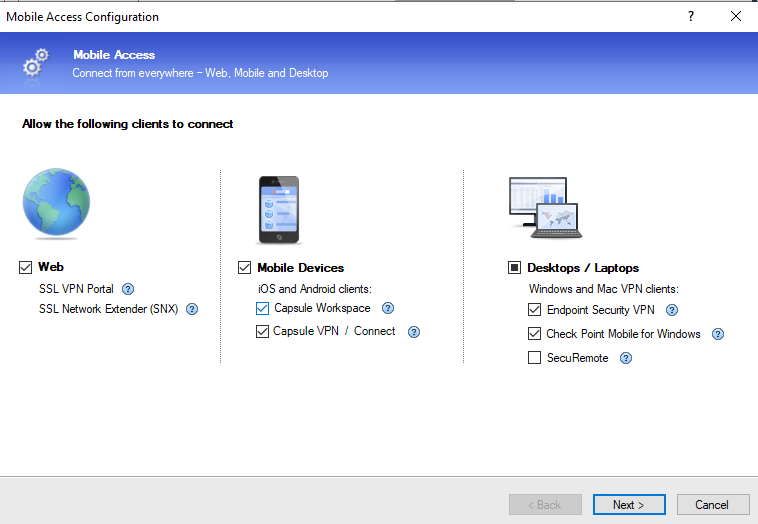
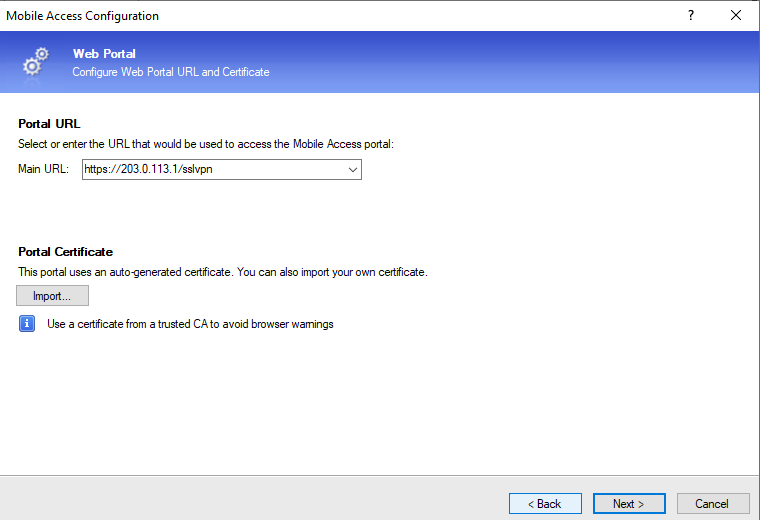
Leave all the options selected as default. In Web Portal page, change the Main URL to the IP address of the external interface.
In Applications page select only Demo.
In Active Directory page, it will detect automatically the active directory domain. Press connect.

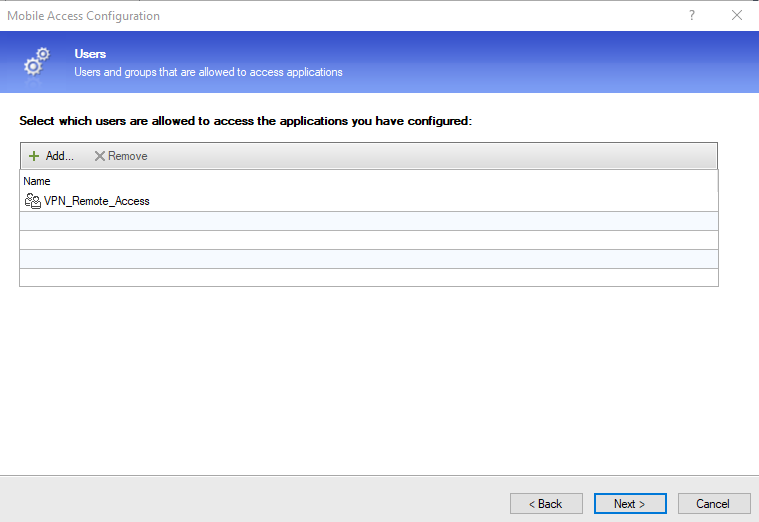
Lastly in Users page, add the user group created earlier.
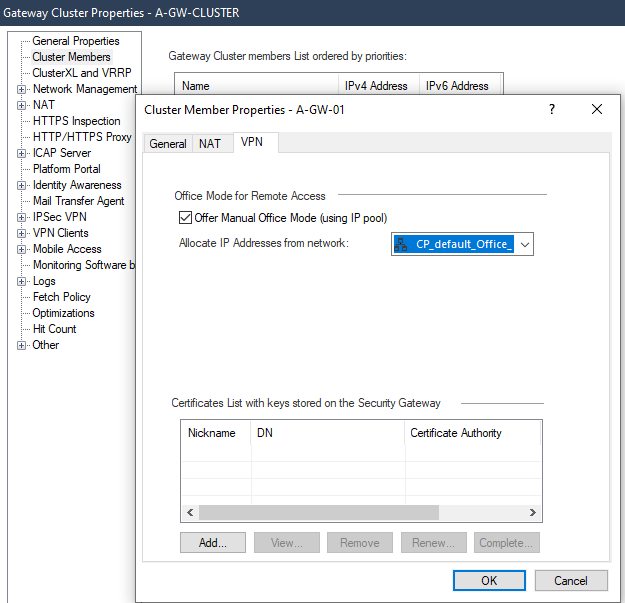
Next let’s enable the Office Mode feature in cluster members tab. Select the gateway > edit > VPN tab > Office Mode for Remote Access > Allocate IP Address from network CP_default_Office
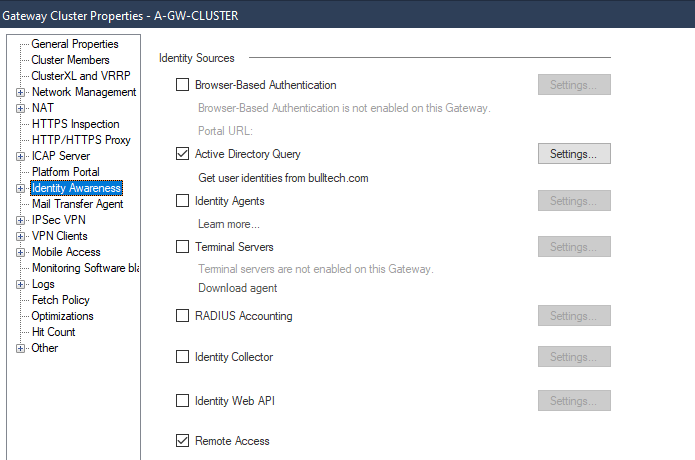
In Identity Awareness tab, select Active Directory Query and Remote Access.
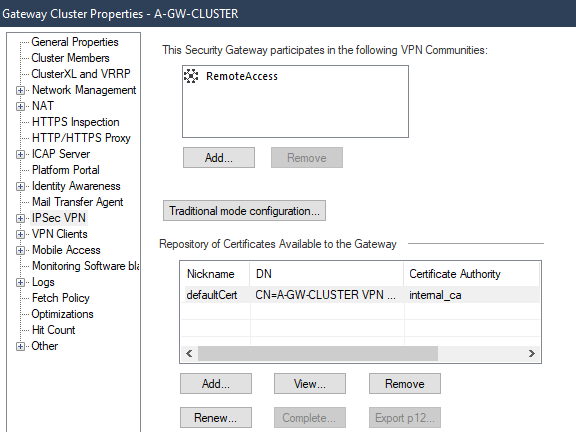
In IPSec VPN tab, add the RemoteAccess vpn community.
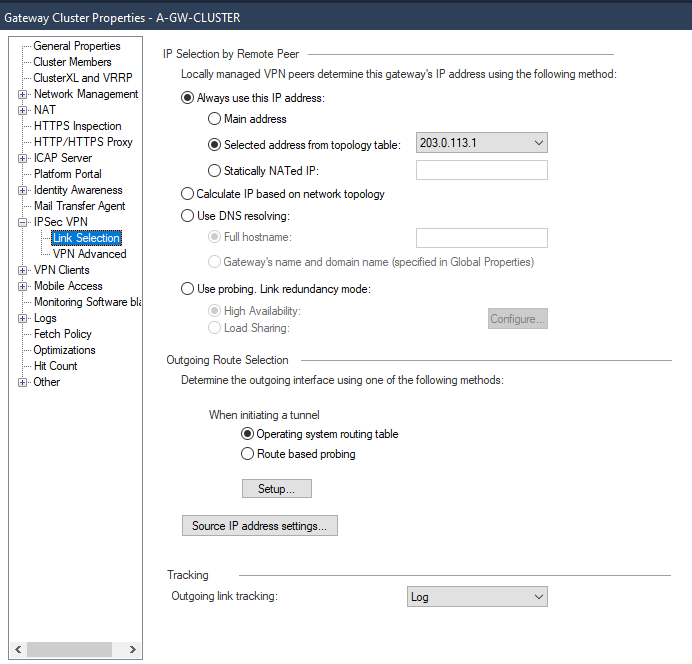
In IP Selection by Remote Peer tab, choose the option Selected address from topology table.
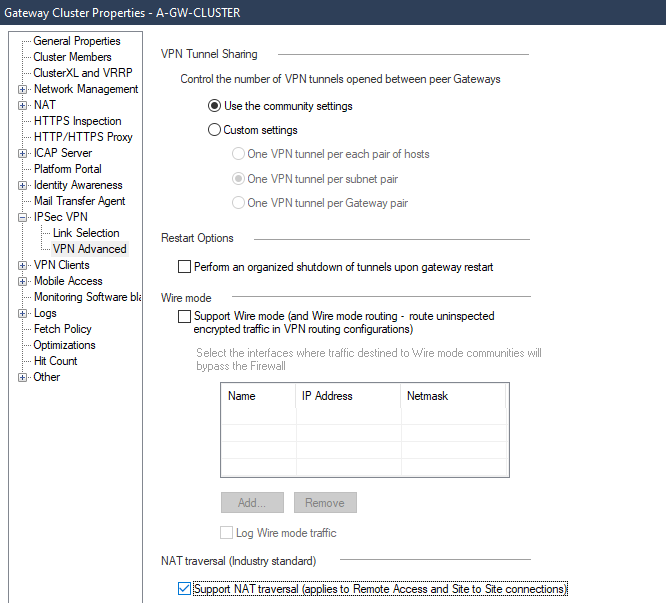
In VPN Advanced tab, enable Support NAT traversal
In VPN Clients > Office Mode, select Offer Office Mode to group (choose the VPN group created)
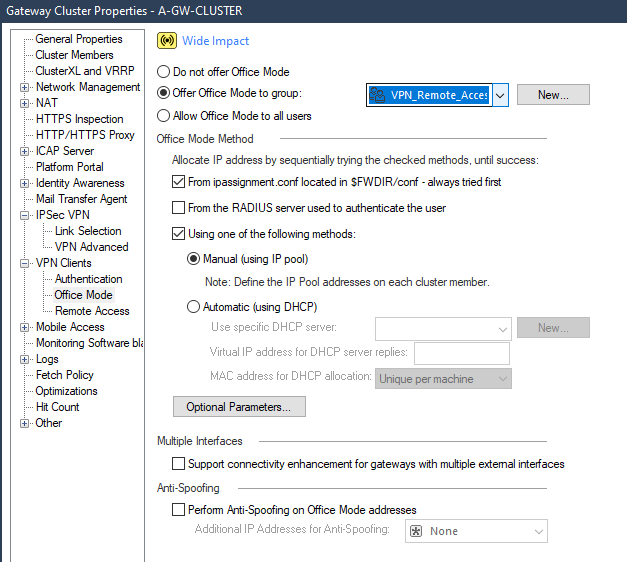
Press ok and let’s create the policy for remote access.

Let’s install the policy and test the access.
Download the Check Point remote access client. You can search on Google for "checkpoint remote access" and then it will take you directly to the download page.
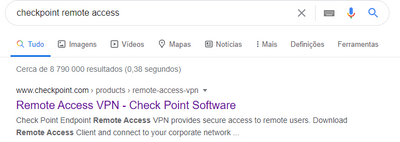

The installation process is very intuitive.
Once the installation finishes, let’s configure the vpn site.
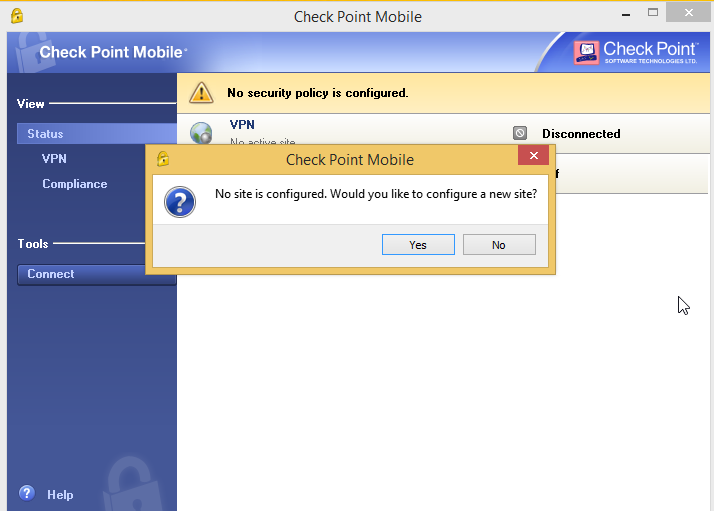
In Server address or Name type the gateway external IP address
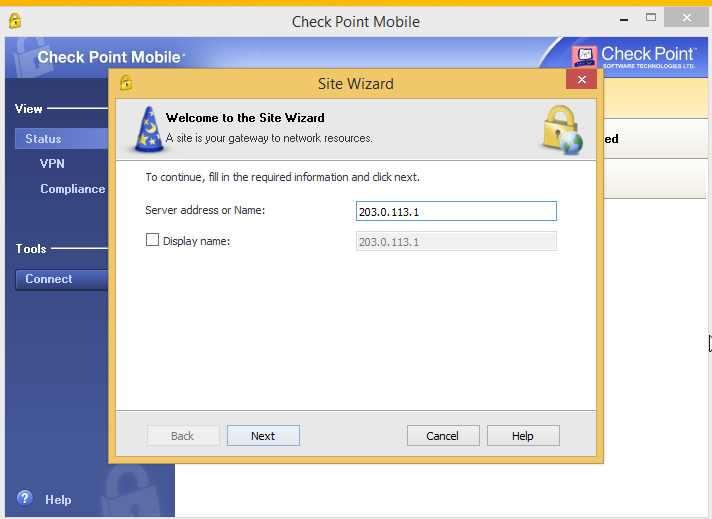
Accept the warning certificate and proceed.
In Login Option Selection select Standard > Username and Password > Finish.
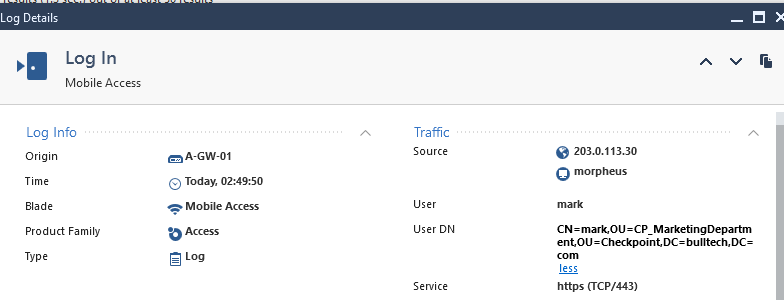
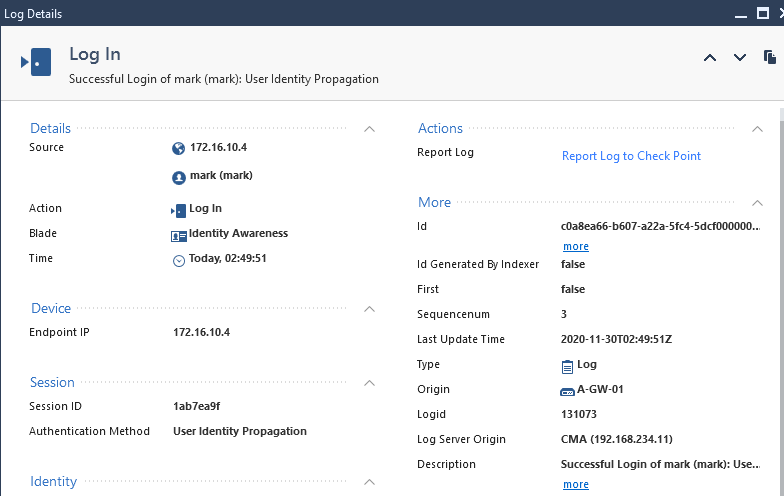
I’ll test the access using a user from the Marketing Department, Finance Department and Local user on Check Point Database.
User: mark
Success
We can see that it was assigned a new IP address from the Check Point remote access pool.

User: francis
Success

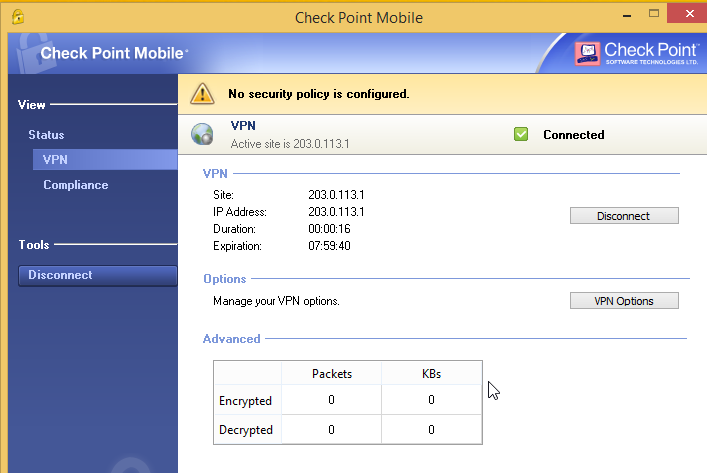
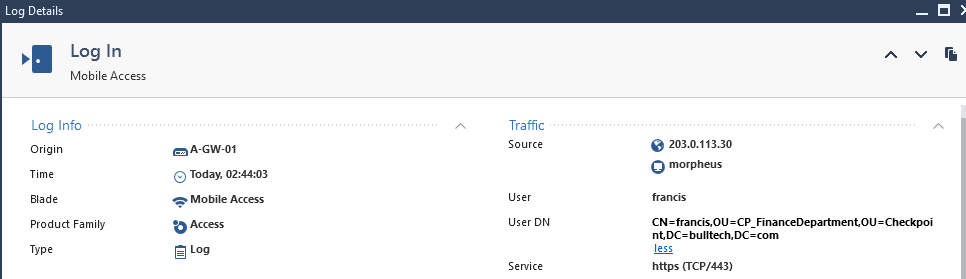
User: mark.cp
Successful

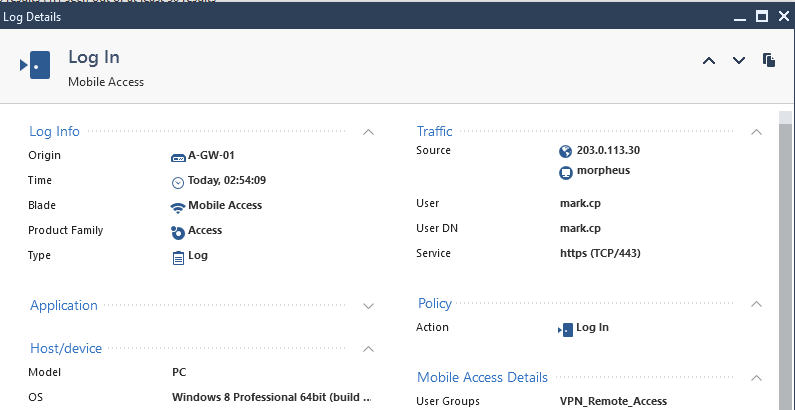
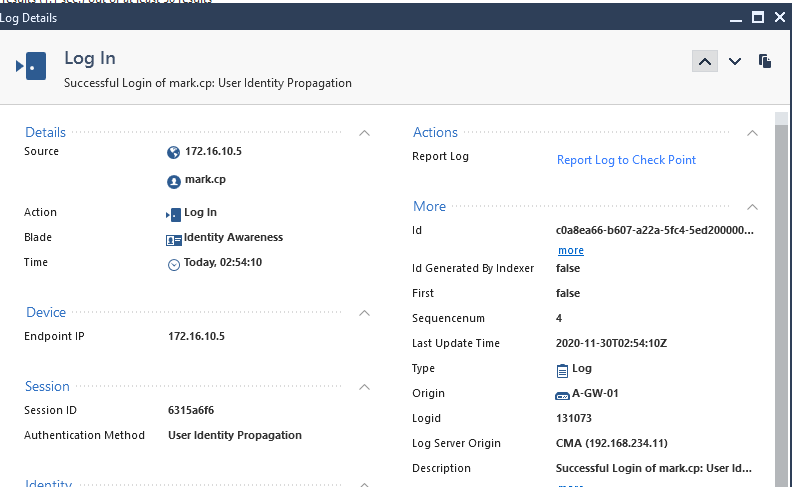
Now let’s test remote access using the browser.
User:martin
Successful
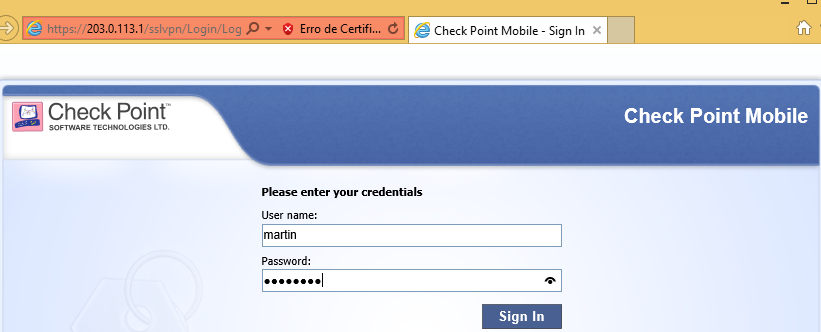
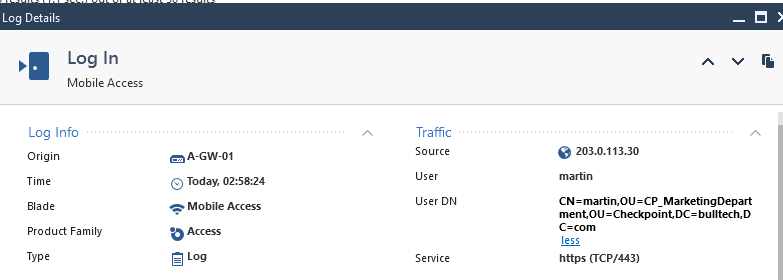
We have deployed successfully Remote Access for Check Point.
I hope you enjoyed this post, leave your comments below and I'll see you on the next one.
Reference:
https://sc1.checkpoint.com/documents/R80.40/WebAdminGuides/EN/CP_R80.40_RemoteAccessVPN_AdminGuide/Topics-VPNRG/Check-Point-VPN.htm