- Products
- Learn
- Local User Groups
- Partners
- More

MVP 2026: Submissions
Are Now Open!
What's New in R82.10?
Watch NowOverlap in Security Validation
Help us to understand your needs better
CheckMates Go:
Maestro Madness
I am new to 80.10. When looking at reports I am a little lost on creating one. I would like to capture and have a report that details all application data.
It's not clear what you mean by "All Application Data."
The more details you can provide about the data you want in your report, the better.
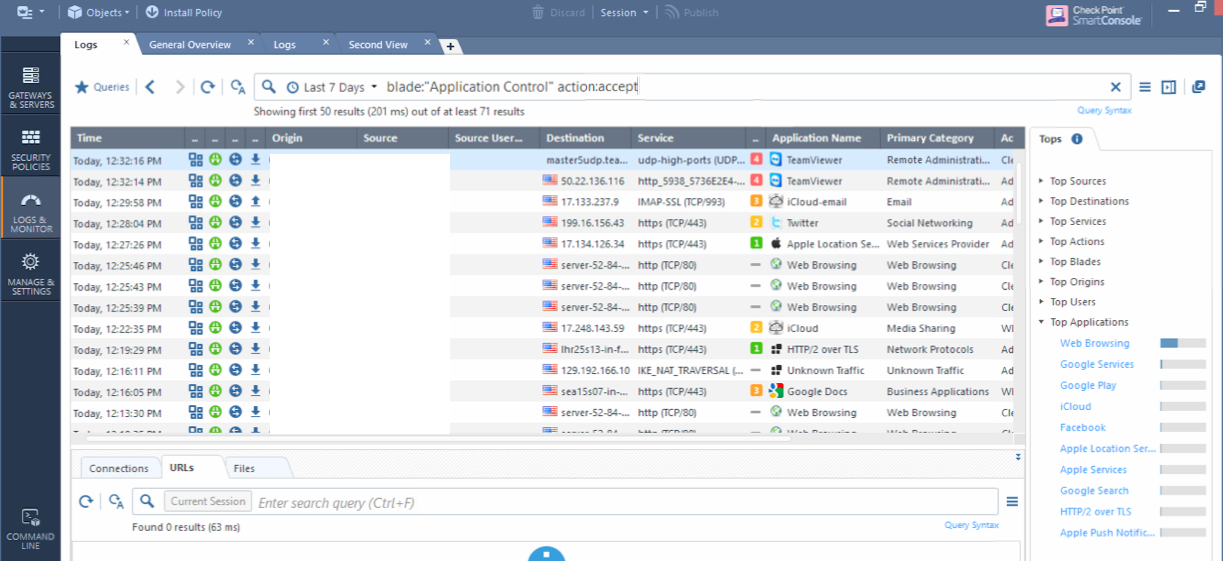
I would like to collect all application traffic so I know our top applications. because I don't think I am getting what I want. And then if there is a place I can see videos or tutorials to create the report.
For top applications, you don't even need to generate a report.
Refer to the attached screenshot.

Depending on how you've constructed your policy, you may not be getting information about the applications in use logged.
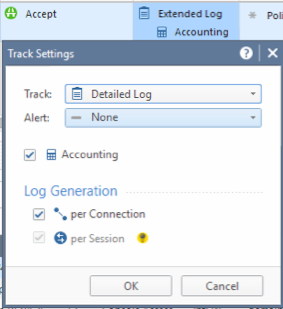
Rules that accept the traffic should be configured with Detailed Log or Extended Log set and Log Generation configured with "Per Session"

You reach the above screen by right-clicking on the Track column.
As far as a video to show how to create a report in SmartEvent R80.10, I can check, but I don't think we have anything ready-made at the moment.
Thank you. I will try this.
If you can give me an idea of what you want to see in your reports long term, I can see about including it in a video tutorial in the future.
I have a similar question to Jim regarding creating new reports. I am in need of setting up something that will show the host and destination IP address and all SMBv1 traffic travelling through a network. I would just like to know how to set this up. I can search the reports for the specified protocol, but it will not provide the IP addresses. I am assuming that once I know how to do this, I should be able to apply it to all other report creating. Any help that you can provide would be much appreciated.
In either SmartView or Logs & Monitor in SmartConsole, click on the +.
Then select New > Report.
Create a report of Type Access Control, call it whatever you want (in this case, I chose SMB).
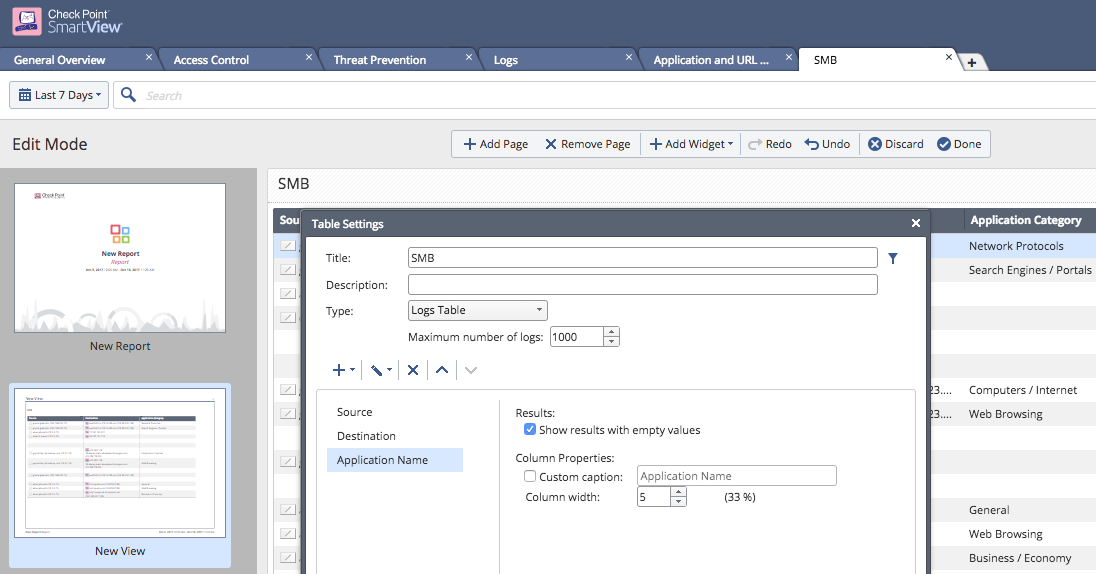
Then on the second page of the report, click Add Widget > Table.
Create a Logs table with the following fields (you can add others, of course):

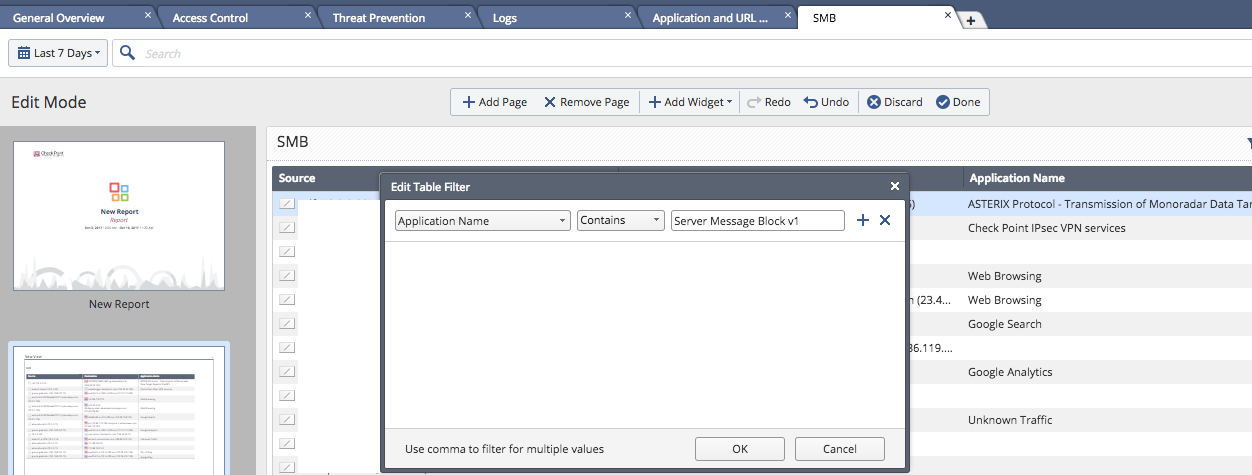
Then click on the Filter (funnel-looking) icon and do the following:

You should get a report that shows you SMBv1 traffic.
Leaderboard
Epsum factorial non deposit quid pro quo hic escorol.
| User | Count |
|---|---|
| 19 | |
| 16 | |
| 7 | |
| 5 | |
| 5 | |
| 4 | |
| 4 | |
| 4 | |
| 4 | |
| 4 |
Fri 12 Dec 2025 @ 10:00 AM (CET)
Check Mates Live Netherlands: #41 AI & Multi Context ProtocolTue 16 Dec 2025 @ 05:00 PM (CET)
Under the Hood: CloudGuard Network Security for Oracle Cloud - Config and Autoscaling!Fri 12 Dec 2025 @ 10:00 AM (CET)
Check Mates Live Netherlands: #41 AI & Multi Context ProtocolTue 16 Dec 2025 @ 05:00 PM (CET)
Under the Hood: CloudGuard Network Security for Oracle Cloud - Config and Autoscaling!About CheckMates
Learn Check Point
Advanced Learning
YOU DESERVE THE BEST SECURITY