- Products
- Learn
- Local User Groups
- Partners
- More

MVP 2026: Submissions
Are Now Open!
What's New in R82.10?
10 December @ 5pm CET / 11am ET
Announcing Quantum R82.10!
Learn MoreOverlap in Security Validation
Help us to understand your needs better
CheckMates Go:
Maestro Madness
Hi
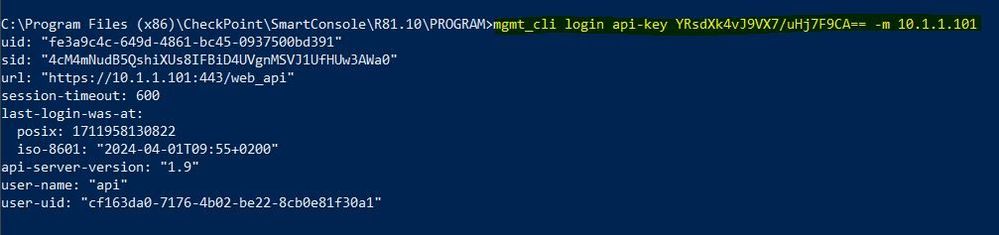
I use an api-key to login instead of username and password:
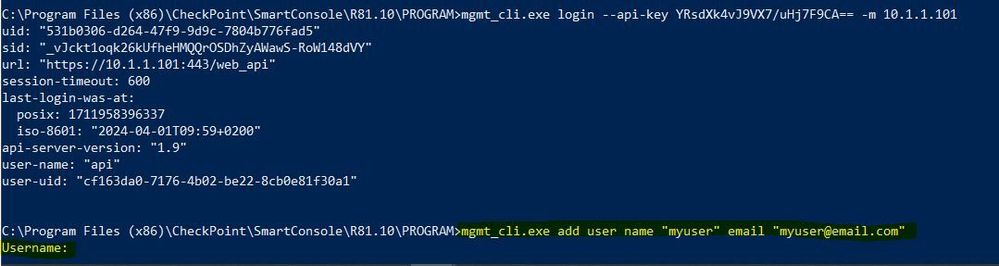
but when try to run any command it asks me again about username and password:
is that a right reaction? Why should I state username and password when using api-key?
what do I miss here?
You're missing passing the session-id to your call. If you don't do that, you need to authenticate again as it is a new session.
Barring login, API calls require a session-id to tie it to an authenticated session or use the -r flag to run as root, which executes your call and immediately publishes your changes.
It is working now with:
mgmt_cli.exe add user name "myuser" email "myuser@email.com" --session-id RIwXloOkVnDAzvpkIZCn0cMbu5bPT1gvyRt_I_iWBYM -m 10.1.1.101mgmt_cli.exe publish --session-id RIwXloOkVnDAzvpkIZCn0cMbu5bPT1gvyRt_I_iWBYM -m 10.1.1.101
Should I use sessionID and -m 10.1.1.101 every time I run a command from Windows CMD? Or there is a way to bypass these?
You can do a "-r true" with every invocation of mgmt_cli from the SMS only as a "one off" to avoid authenticating every time or having to provide a SID, however this is not recommended for bulk use as doing so will authenticate, make your single change and publish it all in one invocation. Using "-r true" with dozens or hundreds of rapid invocations of mgmt_cli will not only be much slower than making your bulk changes and then publishing once at the end, in extreme cases it can slow down everyone's copy of the SmartConsole GUI to the point of being unusable, due to the propagation of so many session-based changes. However this has been mostly rectified in later versions, see: R80.20 MDS Slow
If you are using mgmt_cli from a remote Windows or Linux system you must authenticate then provide the SID with each subsequent call. Be sure to logout and deallocate your SID when complete, as in later versions there is a cap on total sessions that can be pending, and if you hit the limit things will start failing.
All of the above is covered in the best practices section of the newly-updated Check Point Certified Automation Specialist R81.20 class now available worldwide from Check Point ATCs.
When you call 'login', save the output to a file. On subsequent calls, add '-s <File>' to reference that session. You don't need the '--session-id <SID>' or the '-m <ComputerName>' in the subsequent calls if you use the '-s <File>'.
Right the approach of storing the SID in a file works just fine, subject to some things to be aware of:
1) There will be a filename collision if multiple scripts invoking mgmt_cli are executing at the same time. The first script drops its SID into the file after authenticating (let's say sid.txt). Another script fires up while the first one is still running and dumps its SID into the same filename, now the first script starts screwing up when it reads the wrong SID. This can cause some very hard to diagnose, random-looking failures. Been there, done that, got the T-shirt.
2) The SID is left lying around in a file; if the session was not properly logged out and SID deallocated, someone (or some script) might be able to use that SID when they should not.
For those reasons, it is recommended to store the allocated SID in an environment variable (like $SID), which will automatically be deallocated when the script finishes, and can't be accidentally used beyond the scope of that one script. Once again these types of best practices are in the new Check Point Certified Automation Specialist R81.20 class.
For scripts meant to be run in a non-interactive way, I recommend using mktemp on Linux or New-TemporaryFile in PowerShell. Both result in a new file in your temporary directory with a name which does not overlap with any existing names:
portNumber=$(api status | grep "APACHE Gaia Port" | awk '{print $NF}')
sessionFile=$(mktemp)
cmaName="Global"
mgmt_cli --port "${portNumber}" -d "${cmaName}" -r true login >"${sessionFile}"
...
Or in PowerShell:
Port = "443"
SessionFile = New-TemporaryFile
CmaName = "Global"
mgmt_cli.exe --port "${Port}" -d "${CmaName}" -m ... login ... >"${SessionFile}"
I haven't actually used the Windows mgmt_cli in PowerShell, so I'm not 100% sure those options will work as written. Specifically, the domain may need to be in the parameters after login instead of the '-d' flag.
Leaderboard
Epsum factorial non deposit quid pro quo hic escorol.
| User | Count |
|---|---|
| 4 | |
| 1 | |
| 1 | |
| 1 | |
| 1 | |
| 1 | |
| 1 | |
| 1 | |
| 1 | |
| 1 |
Fri 12 Dec 2025 @ 10:00 AM (CET)
Check Mates Live Netherlands: #41 AI & Multi Context ProtocolTue 16 Dec 2025 @ 05:00 PM (CET)
Under the Hood: CloudGuard Network Security for Oracle Cloud - Config and Autoscaling!Fri 12 Dec 2025 @ 10:00 AM (CET)
Check Mates Live Netherlands: #41 AI & Multi Context ProtocolTue 16 Dec 2025 @ 05:00 PM (CET)
Under the Hood: CloudGuard Network Security for Oracle Cloud - Config and Autoscaling!About CheckMates
Learn Check Point
Advanced Learning
YOU DESERVE THE BEST SECURITY