- Products
- Learn
- Local User Groups
- Partners
- More

MVP 2026: Submissions
Are Now Open!
What's New in R82.10?
10 December @ 5pm CET / 11am ET
Announcing Quantum R82.10!
Learn MoreOverlap in Security Validation
Help us to understand your needs better
CheckMates Go:
Maestro Madness
hello
I have 750 appliance And I want to find who takes me the most bandwidth.
In: Active computers - Start Traffic Monitoring
I see the traffic of all computers since the firewall is turned on
Is there another way to find bandwidth usage now?
I tried downloading a packet in: Tools - Paket Capture
I went in to save the packets, but it only keeps 500kb, which is less than a second of traffic
Is it possible to save all the network's traffic for more time?
Thank you
There is limited storage space on the 750, which is why the packet capture limit is so small.
You could probably save more to a USB drive from expert mode using the tcpdump command.
How to use tcpdump?
Is this a computer connected to one of the lan?
Through tcpdump you can also check the speed of traffic?
Or will I still need to use the wireshark with the file I'm creating?
Thanks
tcpdump is a command you can run on the 750 via the CLI in expert mode.
It's a standard Unix command.
You would then download the pcap file and, if you prefer, look in Wireshark or any other offline tool.
The following might be helpful if you've never used tcpdump before:
I do this from any computer connected to the network
Or from a computer connected to a special place?
Thank you very much
It helps me a lot
Like I said, you run the command from the CLI.
You do that either from an SSH session (can be from anywhere) or a Console connection, which requires a direct serial/USB connection to the appliance.
Sorry
I still did not understand
If I run tcpdump from one of the computers it will create me a traffic file just for this computer
So how do I connect the computer that it will receive all the traffic?
I did not understand how to run the cli via ssh, and then run the tcpdump
Can I explain this or a guide?
Thank you
You are trying to run tcpdump on the 750 appliance itself.
To do that, you need to reach the CLI of the device.
You can access the CLI using:
Once you get there, you can run tcpdump with the appropriate options.
I highly recommend reviewing the product documentation: Check Point 700/900 Appliances R77.20.81 Administration Guide
You may also want to consult with someone from your local Check Point office or partner.
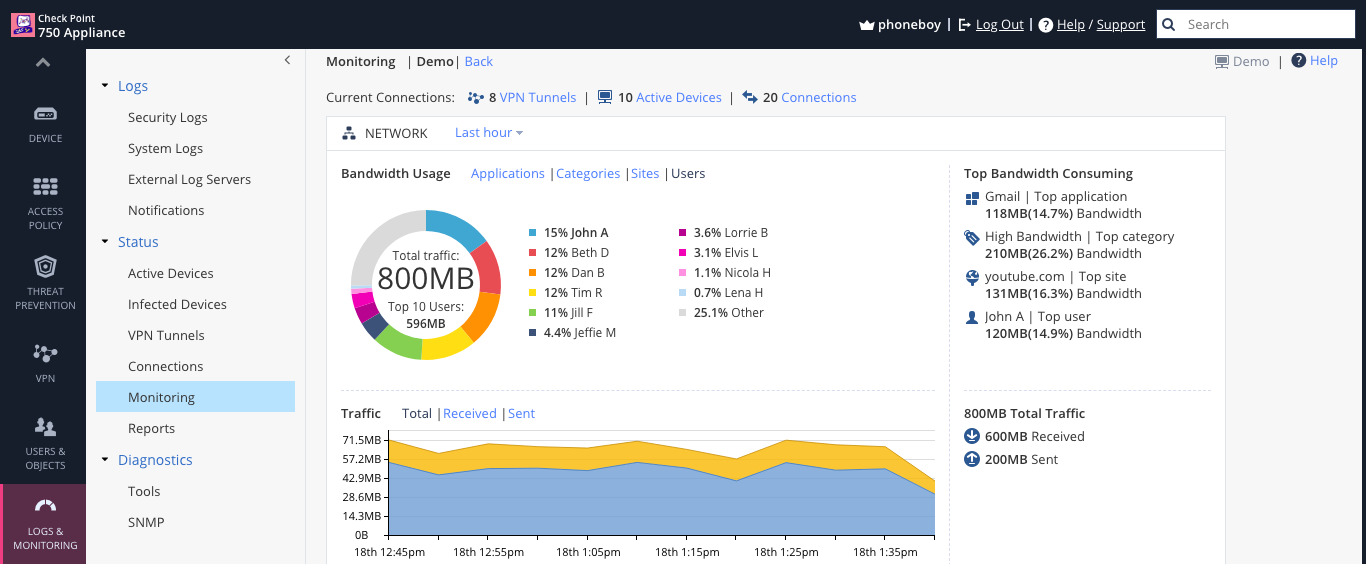
You can definitely see who is using large amounts of bandwidth in the last hour, though.
This requires using Identity Awareness.

This only works if I set a user for each Ip
It does not show by ip or computer's name
In applications it is impossible to know which computer is using the specific software
For example, if I found that there is a big use of windows update
I can not tell which computer it is
Thanks
If you're logging applications, you should be able to tell which computers are using Windows Update, though.
in applications
He shows me only the software, not some computer
Could it be that he show me the computers only if i write the user on router?
You should be able to look at the logs and find the people using those specific applications.
Leaderboard
Epsum factorial non deposit quid pro quo hic escorol.
| User | Count |
|---|---|
| 26 | |
| 20 | |
| 16 | |
| 5 | |
| 4 | |
| 4 | |
| 4 | |
| 3 | |
| 3 | |
| 3 |
Fri 12 Dec 2025 @ 10:00 AM (CET)
Check Mates Live Netherlands: #41 AI & Multi Context ProtocolTue 16 Dec 2025 @ 05:00 PM (CET)
Under the Hood: CloudGuard Network Security for Oracle Cloud - Config and Autoscaling!Fri 12 Dec 2025 @ 10:00 AM (CET)
Check Mates Live Netherlands: #41 AI & Multi Context ProtocolTue 16 Dec 2025 @ 05:00 PM (CET)
Under the Hood: CloudGuard Network Security for Oracle Cloud - Config and Autoscaling!Thu 18 Dec 2025 @ 10:00 AM (CET)
Cloud Architect Series - Building a Hybrid Mesh Security Strategy across cloudsAbout CheckMates
Learn Check Point
Advanced Learning
YOU DESERVE THE BEST SECURITY