First step: Update the version of the Check Point Upgrade Service Engine (CPUSE) – Gaia Deployment Agent.
NOTE: Always download the latest version of CPUSE. If the device that will perform the upgrade has Internet access (whether it is a Security Gateway, SMS, or any appliance running Gaia), CPUSE will be able to update itself automatically.
If you need to update offline, download it from SK92449. Always keep an eye on the SK, as Check Point updates it frequently.
https://supportcenter.checkpoint.com/supportcenter/portal?eventSubmit_doGoviewsolutiondetails=&solut...

"Check Point Upgrade Service Engine (CPUSE), also known as Deployment Agent [DA], is an advanced and intuitive mechanism for software deployment on Gaia OS, which supports deployments of single HotFixes (HF), of HotFix Accumulators (Jumbo), and of Major Versions.
Gaia Software Updates offers a Smart, Fast and Safe deployment solution:
|
Smart
|
- Discover only the applicable software updates
- Reboot only if required
- Auto authentication with Download Center
- View hierarchy of software updates
- E-mail notification for new updates
|
|
Fast
|
- Fast download
- Fast installation
- Short downtime
|
|
Safe
|
- Upgrade to the next Major Version is performed on a new disk partition and preserves Gaia OS configuration
- Automatic conflicts validation
- Checksum validation of packages on the target server
- Self-test after installation
- Auto roll-back on failures
|
"
Transfer the Deployment Agent file to the device that will be upgraded (you can use WinSCP).
You can place it in /var/tmp.
Extract the Deployment Agent file.
Take the name of the extracted file and install it using the rpm upgrade command with force option.
Start the Deployment service again.
New way to install without extracting the file:
Procedure in CLI:
- Transfer the CPUSE Agent package (DeploymentAgent_<build>.tgz) to the machine (into a directory, for example: /some_path_to_CPUSE/).
- Connect to the command line.
- Log in to Gaia Clish.
- Run the installer agent install command with the full path to the DeploymentAgent_<build>.tgz file.
Backup – show configuration
Via Clish:
To display all configurations without needing to press space repeatedly, set the clienv rows to 0.
To show all configurations, use the show configuration command.
Or use the save configuration command followed by a file name.
Note: Using save configuration will store the file in the home directory of the user who executed the command.
Other files to back up:
$FWDIR/boot/modules/fwkern.conf
- Files used for specific version tuning and adjustments.
- Not all fwkern.conf parameters are valid for every version. Some parameters only operate on specific firmware versions, and carrying certain parameters over to another version during an upgrade may cause unexpected issues.
$FWDIR/conf/ipassignment.conf
- Used to assign fixed IP addresses to Remote Access VPN users.
Starting the installation via CPUSE WebUI (Gaia)
Select a Major Version.
Through CPUSE, you can upgrade the following Gaia components:
- Major Versions
These are firmware versions such as R81.20, R82, and others.
- Upgrade Major Versions have two types:
- Clean Install - that do a clean format of the machine, clean all files, and install Gaia again from zero.
- Upgrade - upgrade gaia firmware but keep the configurations
- Jumbo Hotfix
- A cumulative package of fixes and updates for a specific firmware version.

NOTE: If Gaia (SMS or Security Gateway) has Internet access, CPUSE will retrieve the upgrade packages automatically and will be able to download them directly, without the need to import packages for an offline installation.
If you need to perform an offline installation of a Major Version or Jumbo Hotfix, transfer the version file to the device using the Import Package option, select the downloaded file, and wait for the transfer to complete.
Its every recomended execute Verifier

After the file has been successfully transferred to the upgrade target, run a verification. If everything is OK, proceed with the upgrade.
Wait for the installation to complete. After the device reboots, it will come back up running the newly installed version.
In the Gaia WebUI, under Overview, you can verify the firmware version.
Or via CLI using the commands show version or fw ver.
TROUBLESHOOTING DURING UPGRADE VIA CPUSE WEB
If more than 30 minutes have passed after starting the upgrade and the device does not respond to ping (neither from the management server nor from the other cluster member), check the following:
- Verify if it responds to ping within the same subnet.
- Check if it responds to ping through the firewall member that is still active.
On the active member that has not yet been upgraded, check the cluster status using cphaprob stat.
Note: This command allows you to verify the cluster status and evaluate whether the member entered Standby.
Most likely, the upgrading member will appear as “lost.” However, if you access it via serial console, it should already be available and updated to the new version.
To restore connectivity (ping response), on the member that was upgraded, run
fw unloadlocal.

After that, on the active member that has not yet been upgraded, run cphaprob stat.
Note: Check whether the status of the member being upgraded has changed to “down.”
Also test whether the ping has been restored, either through the active member, from the management server, or from a machine in the same subnet.
Install the policy on the upgraded member. However, before doing so, go to the Cluster General Properties and change the cluster version to the new version that is being installed.
When installing the policy, disable the option that attempts to install on both members and stops if one fails. Instead, force the cluster to attempt installation on both members. The installation will fail on the outdated member and succeed only on the upgraded one.
After that, manually bring the down member up using:
clusterXL_admin up
Enable Multi-Version Cluster (MVC) on the firewall that is now running the new version (for example, R81).
In Expert mode, enable MVC.
This will allow the member running the new version to communicate in the cluster with the member that is still running the old version, so the upgrade process can continue.
Then go to the Cluster Properties again and change the version to R81 (or R81.10), and proceed with the Install Policy using these settings enabled.
NOTE: If was a cluster, this is a important step, because will install on the member that its high version, and failed the installation in the old, because during the upgrade process of a cluster this is required step
Or if you are upgrading a normal gateway this is required too.


Note: Uncheck the option “For gateway clusters, if installation on a cluster fails, do not install on that cluster.”
This will allow you to install the policy on the newly upgraded member. The installation will fail on the member still running the old version, but this is expected behavior.
Verify the cluster status again using cphaprob stat.
The upgraded member must be in Standby state so that you can perform a failover and continue the upgrade process on the other member.
Install the required Hotfix and perform the necessary verification checks.
Updating a Security Gateway via clean install using a USB drive
Create a bootable USB drive using the Isomorphic tool.
The following YouTube video may help: “Make Bootable Pen Drive for Check Point Firewall Installation”
https://www.youtube.com/watch?v=JfYj-ObzilM&t=210s
SK65205 explains how to perform the installation using a USB drive and provides the link to download the Isomorphic tool:
https://support.checkpoint.com/results/sk/sk65205

ISOmorphic have two types of configuration:
- BIOS
- for old models
- UEFI
- for new models 9000, 19000, 29000
In the Installation target field, select the required profile:
|
Profile
|
Description
|
|
BIOS
|
Only for these Check Point appliances:
- Quantum LightSpeed (QLS, MLS)
- All Smart-1 models
- All Threat Emulation models
- Maestro Orchestrator MHO-175
- Maestro Orchestrator MHO-170
- Maestro Orchestrator MHO-140
- 28000
- 26000
- 23000
- 21000
- 16000
- 15000
- 13000
- 12000
- 7000
- 6000
- 5000
- 4000
- 3000
- 2000
|
|
UEFI
|
Only for these Check Point appliances:
- Smart-1 7000
- Smart-1 700
- Quantum Force 29000
- Quantum Force 19000
- Quantum Force 9000
- Quantum Force 3900
|
|
Open Server
|
Only for these:
- Open Servers (non-Check Point hardware)
|
You will need a serial cable (Mini USB, USB-C, or RJ45), depending on the appliance model. This can be confirmed by checking the datasheet of the model that will be upgraded.
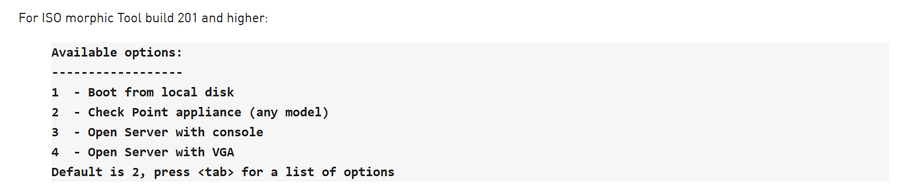
When the firewall detects the USB drive, it will display a prompt similar to the following (for UEFI-based appliances):
Select option 2 – Check Point appliance (any model).
Perform a backup using show configuration.
Via Clish:
To display all configurations without pagination:
set clienv rows 0
To show the full configuration:
show configuration
Or:
save configuration <file-name>
Note: Using save configuration will store the file in the home directory of the user who executed the command.
Other files to back up:
$FWDIR/boot/modules/fwkern.conf
$FWDIR/conf/ipassignment.conf
$FWDIR/conf/trac_client_1.ttm
Note 1: Format the USB drive in FAT32.
Note 2: Try to use a USB drive up to 16 GB. Larger drives may sometimes cause errors.
Note 3: The USB drive may not be recognized by the firewall. If that happens, you may need to test another USB drive until one is detected. Unfortunately, there is no guaranteed method or workaround when a USB drive is not recognized by the Security Gateway.
BIOS boot details:
If everything works correctly and the bootable USB drive is recognized, depending on how it was created with the Isomorphic tool, the device will boot from the USB drive automatically.
If the USB drive was prepared to allow model selection during installation, a menu will appear at the very beginning of the boot process, allowing you to quickly select the desired version.

The image above shows the option selected in the Isomorphic tool.
If you choose the option as shown in the image, it will not prompt you to select the appliance model when booting the Security Gateway from the USB drive.

You must quickly select the appropriate option according to your appliance model, if the USB drive was prepared in that way.
After the installation is complete:
Restore the configuration using the previously saved show configuration output. Reapply the configuration step by step via SSH, carefully verifying that each command runs without errors.
Post-installation details:
You must enable Multi-Version Cluster (MVC) using cphaconf mvc on.
This allows the cluster to remain operational while running different software versions on each member, so you can safely proceed with upgrading the other appliance.





