Hi there, in this post we're going to deploy a pair of Check Point gateways running ClusterXL and another pair running VRRP.
This posts, assumes you already have CMA/SMS deployed, SmartConsole installed and FTW configuration done.
We’ll begin adding the gateways for Site A. Most of the configuration we’ll be done using SmartConsole.
Login to SmartConsole, and access the pane Gateways & Servers > New > Gateway
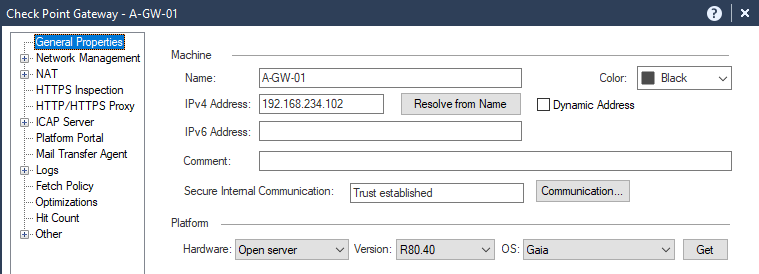
Fill the following options:
Name
IPv4 Address
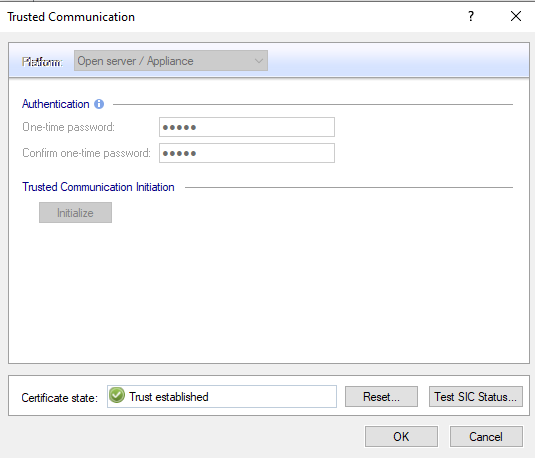
Communication > Authentication > One-time password
 1.png
1.png
 2.png
2.png
 3.png
3.png
Now add the licences using SmartUpdate.
I already explained how to add the licences in the link below:
https://community.checkpoint.com/t5/General-Topics/Deploying-Check-Point-Solution-R80-40/m-p/94267/h...
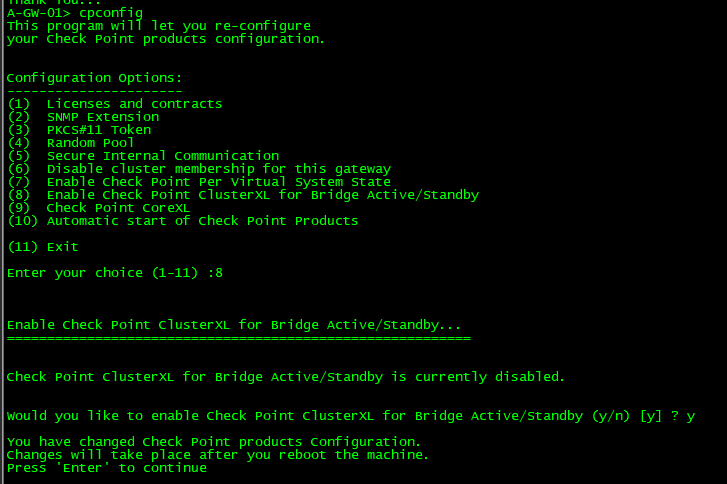
Next, let’s enable ClusterXL feature usig GAIA. Run cpconfig and choose option 8.
 4.png
4.png
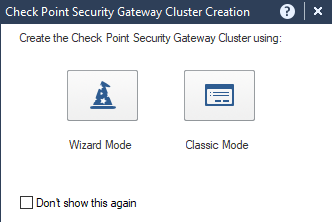
Once the gateways are back online, let’s create the Cluster object. In Gateways & Servers pane > New > Cluster > Check Point Gateway Cluster Creation > Classic Mode
 5.png<bottom>
Fill the Name and IPv4 Address in General Properties.
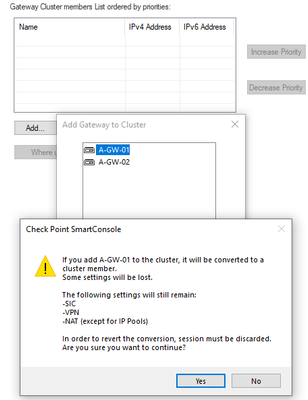
Next go to Cluster Members pane and add both Gateways by choosing Add Existing Gateway.
Accept the warning message.
 6.png
6.png
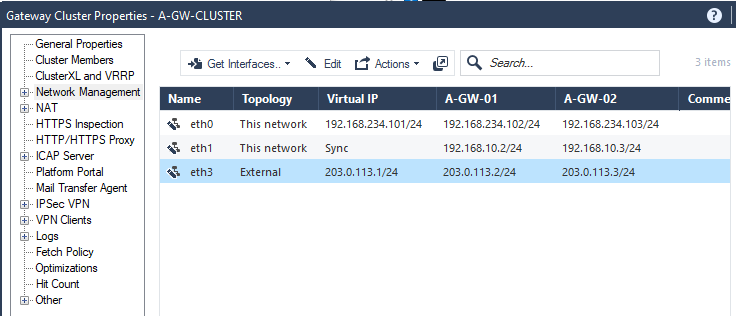
Now let’s proceed to Network Management pane.
Choose Get Interfaces with Topology and accept the warning related to spoofing.
Change the interfaces values accordingly:
- Eth0 – Network Type: Cluster > IPv4: 192.168.234.101/24
- Eth1 – Network Type: Sync
- Eth3 – Network Type: Cluster > IPv4: 203.0.113.1/24
 7.png
7.png
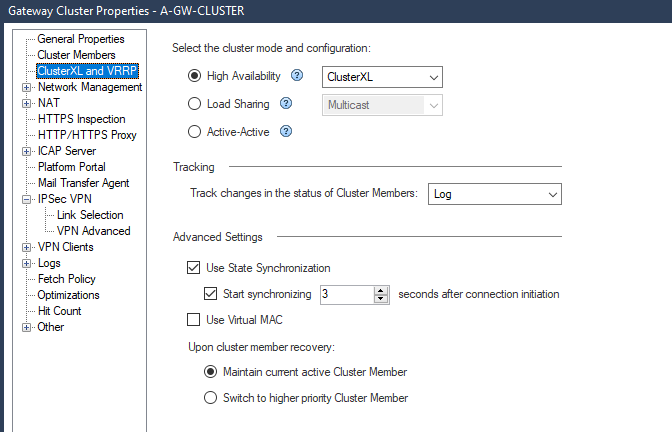
If we look at the ClusterXL and VRRP pane, we see that by default High Availability is selected.
 8.png
8.png
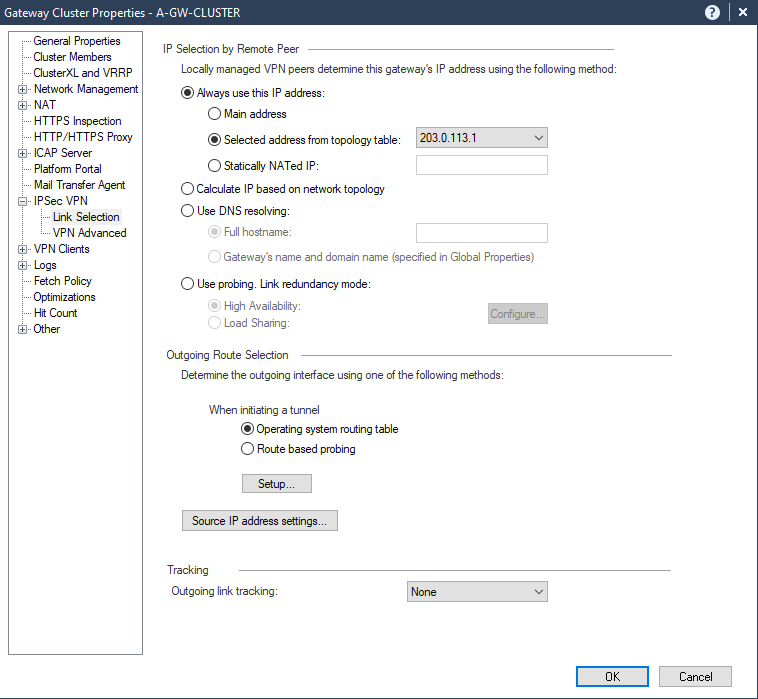
Finally let’s proceed to IPSec VPN pane, and set Link Selection to gateway external IP address
 9.png
9.png
Press ok and the cluster object will be created.
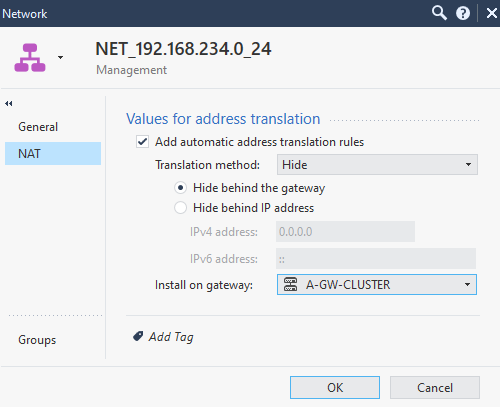
Let’s create a rule for testing purposes. We’ll configure Hide nat for our internal network.
 10.png
 11.png
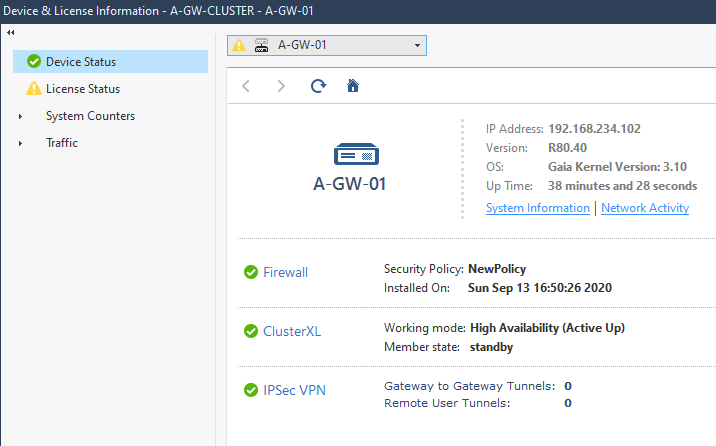
We can verify ClusterXL status in Gateways & Servers pane, by selecting the cluster object and clicking monitor
 12.png
Press ok and the cluster object will be created.
Let’s create a rule for testing purposes. We’ll configure Hide nat for our internal network.
10.png
11.png
We can verify ClusterXL status in Gateways & Servers pane, by selecting the cluster object and clicking monitor
12.png
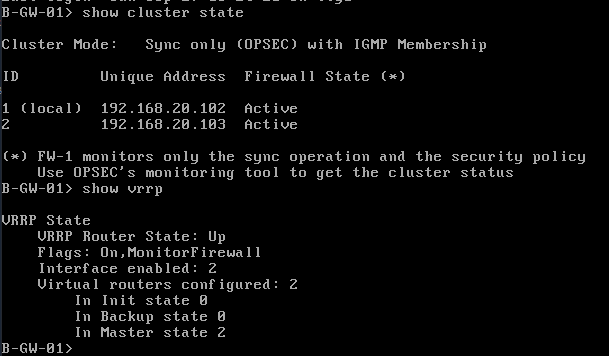
We can verify also using GAIA by running the command show cluster state.
So far we have deployed ClusterXL for Site A, now let’s deploy VRRP for Site B.
The adding process will be a little different because the gateways are in a different network, the idea is to simulate a remote site.
Let’s make CMA accessible in external network:
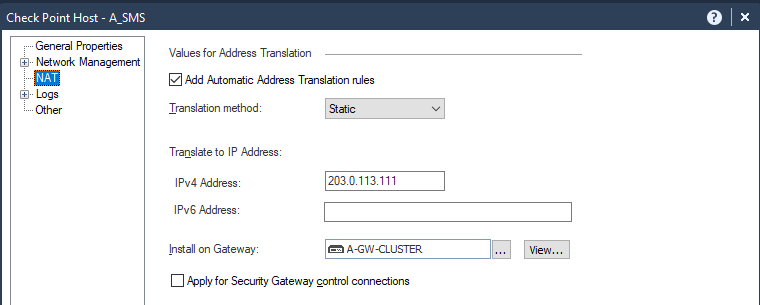
Add a rule allowing the CMA (A_SMS) and translate CMA internal IP to an external IP. Edit CMA object, on NAT tab, Translation Method choose static, Translate to IP Address IPv4 Address: 203.0.113.111, Install on Gateway A-GW-Cluster.
 13.png
 14.png
Now perform the same steps as we did before, to add the gateways.
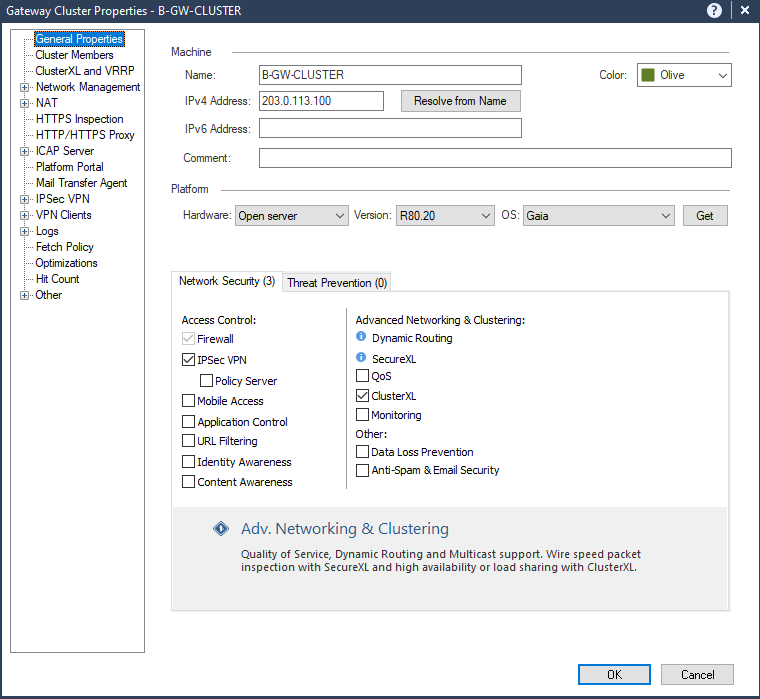
Once they are added, let’s create the cluster object for Site B gateways.
 15.png
First clear the ClusterXL box in Network Security.
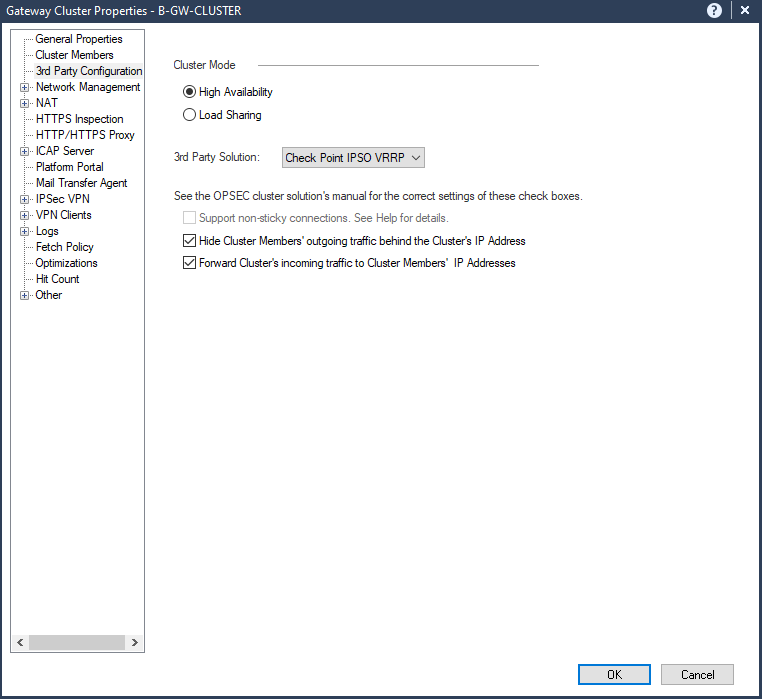
A new pane will be shown as 3rd Party Configuration. Set the Cluster Mode to High Availability and 3rd Party Solution as Check Point IPSO VRRP.
 16.png
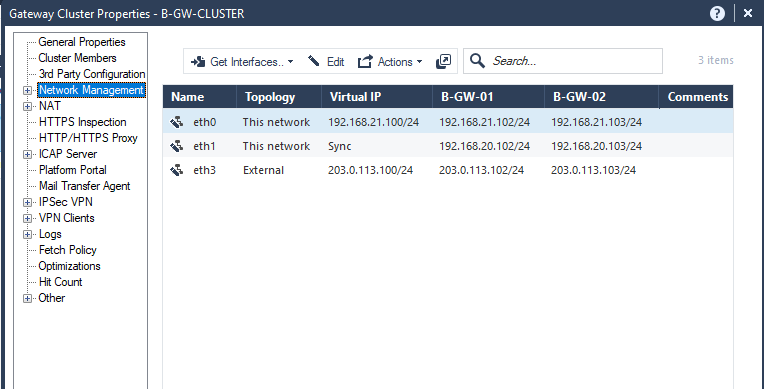
In Network Management Pane, Get the interfaces with Topology and change the values as described below:
 17.png
Press Ok.
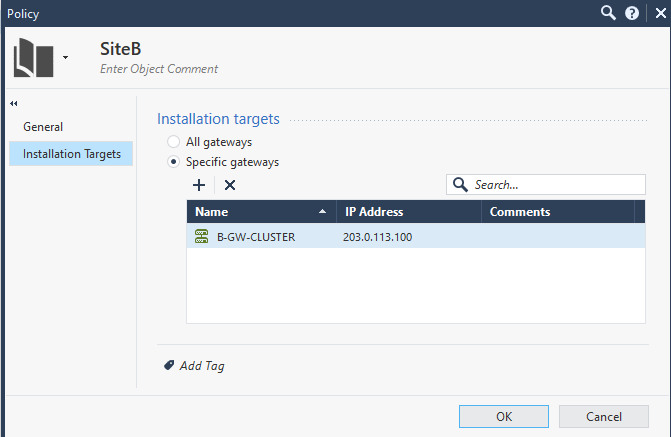
Add a new Policy Package and set as the Installation targets the new cluster gateway
 18.png
Press OK.
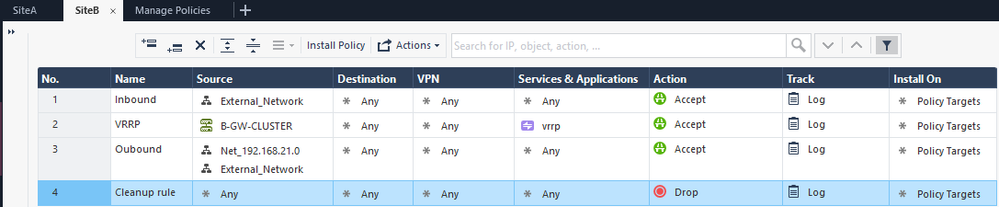
Create some basic rules and install the policy for Site B.
 19.png
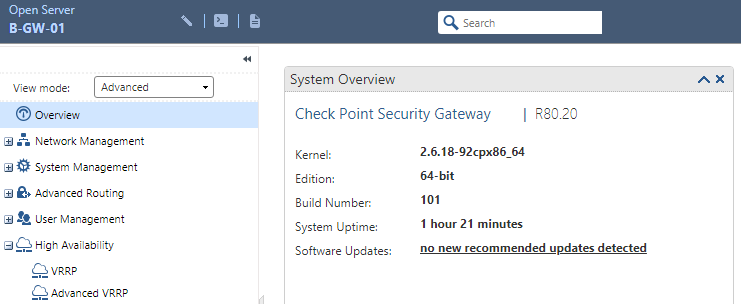
Let’s configure the VRRP parameters on Site B gateways. Access web page of Site B gateways:
 20.png
Access the page High Availability > VRRP > Virtual Routers > Add
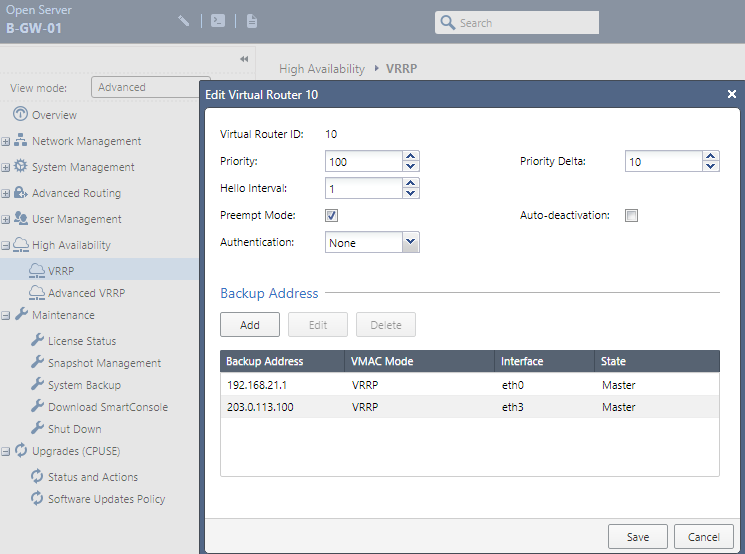 21.png
On gateway B-GW-02 we’ll set a lower Priority and the Router ID has to be the same as specified in B-GW-01.
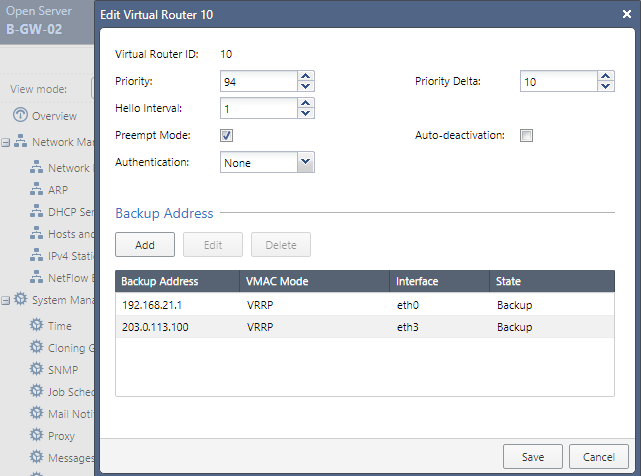 22.png
Once it’s done, install the policy to reflect the new changes.
We can successfully confirm the cluster status.
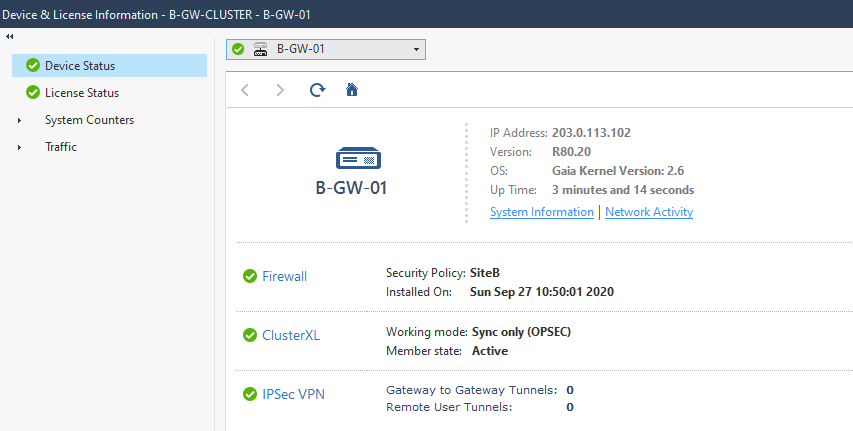 23.png
 24.png
Hope you enjoyed this post, leave your comments below and I'll see you on the next post.