CloudGuard WAF — GenAI Security Settings Configuration Guide
More information on GenAI you will find in the Admin Guide
How to identify the Request URI and Prompt Location for GenAI attack inspection
This guide walks you through using Chrome Developer Tools to identify the correct Request URI and Prompt Location values needed to configure GenAI security scanning in Check Point CloudGuard WAF.
Overview
When configuring CloudGuard WAF to inspect GenAI-related traffic (such as prompts sent to an AI chatbot), you need to tell the WAF two things:
- Request URI — The API endpoint path that handles chat/prompt requests (e.g.,
/api/chat).
- Prompt Location — The JSON field inside the request body that contains the user's prompt (e.g.,
body.message).
The screenshot below shows the GenAI Security Settings panel in CloudGuard WAF where these values are entered.

To find the correct values for your application, follow the steps below using Chrome Developer Tools.
Step 1 — Open Chrome Developer Tools
Open your web application in Google Chrome. Then open Developer Tools using one of the following methods:
- Press F12 on your keyboard, or
- Press Ctrl + Shift + I (Windows/Linux) / Cmd + Option + I (Mac), or
- Right-click anywhere on the page and select Inspect.
Step 2 — Go to the Network Tab and Add the Method and Path Columns
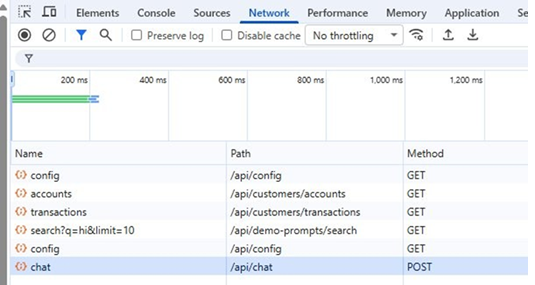
In the Developer Tools panel, click the Network tab at the top. To make it easier to find the correct request, right-click on any column header (e.g., "Name") and enable the Method and Path columns. This will allow you to quickly spot the POST request and its URI path.
Step 3 — Send a Message in the Chat
With the Network tab open and recording, go back to your web application and type a message in the chat box (for example, type hi). This will trigger an API call that you can inspect in the Network tab.
Step 4 — Locate the POST Request and Copy the Path (Request URI)
In the Network tab, look for the request with Method = POST. The Path column shows the Request URI. In the example below, the path is /api/chat. This is the value you will enter in the Request URI field in the WAF GenAI settings.
You can also click on the request name (e.g., "chat") and verify the full URL in the Headers tab. The screenshot below shows the Headers details confirming the Request URL and POST method.

Step 5 — Click on the Payload Tab to Find the Prompt Location
After clicking on the POST request name in the Network tab, switch to the Payload tab. This shows the JSON body that was sent with the request. Look for the field that contains the text you typed in the chat. In the example below, the message hi appears in the message field.

The JSON field name that holds your text is the Prompt Location. In this case, the prompt location is:
Tip: If the JSON structure is nested (e.g., {"data": {"prompt": "hi"}}), the prompt location would be data.prompt. Use dot notation to describe the path to the field that contains the user's input.
Step 6 — Enter the Values in CloudGuard WAF
Go back to the CloudGuard WAF portal and navigate to the GenAI Security Settings for your Web Application asset. Enter the values you identified:
- Request URI:
/api/chat
- Prompt Location:
message
Click Save to apply the configuration. The WAF will now inspect GenAI traffic on this endpoint for prompt injection attacks and other GenAI-specific threats.
Quick Reference
| Setting |
Where to Find It |
Example Value |
| Request URI |
Network tab → Path column of the POST request |
/api/chat |
| Prompt Location |
Payload tab → JSON field containing your input |
message |





