Hi Nicolas,
The problems sounds like the UDR's are not configured properly to point to the Azure gateway.
In an Azure Check Point deployment no VM's should be local to the gateway. This means you will require a VPN subnet in your Vnet (Or another backend subnet) where the VPN client will reside.
Answers to your questions
- Do we need to define the VPN subnet on Azure Subnet ?
- If we need to define the subnet to Azure what route should we defined on this subnet ?
- Route definitions
-
Route #1
Route Name <Web/App/VPN>-Subnet-Local
Address prefixes Web/App/VPN subnet (Example- 10.7.4.0/24)
Net Hop Type Virtual Network
Next Hop Address Leave Blank
-
Route #2
Route Name <Web/App/VPN>-To-Other-Subnets
Address prefix Your vNet network (Example- 10.7.0.0/16)
Net Hop Type Virtual appliance
Next Hop Address eth1 Ip of the firewall appliance (example 10.7.1.4)
-
Route #3
Route Name <Web/App/VPN>-Subnet-Default-<Username>
Address prefix 0.0.0.0/0
Net Hop Type Virtual appliance
Next Hop Address eth1 Ip of the firewall appliance (example 10.7.1.4)
- Route needed on the Gateway
- You need to setup the Check Point Gateway to send all vNet traffic to the Backend Azure Gateway address. This will be the first IP of the Backend
-
Example: Your VNET network is 10.x.0.0/16 the Azure “Router” IP is 10.x.1.1)
SSH to your Firewall VM and add the following route in Clish.
Command:
clish -c 'set static-route VIRTUAL-NETWORK-PREFIX nexthop gateway address ETH1-ROUTER on' -s
clish -c 'save config'
Where:
VIRTUAL-NETWORK-PREFIX is the prefix of the entire virtual network (e.g. 10.x.0.0/16)
ETH1-ROUTER is the first unicast IP address on the subnet to which eth1 is connected (e.g. 10x.1.1)
For example: clish -c 'set static-route 10.x.0.0/16 nexthop gateway address 10.x.1.1 on' –s
- Do we need to route the traffic to Frontend or Backend interface
You can also confirm where the effective route is going on the Mobile Client. This can be done in the Azure portal
- Go under the VM in question
- Make sure the system is turned on. Otherwise the routes will not be properly displayed
- Go under Networking
- Select the Attached Network interface
- Under the attached network interface select Effective routes
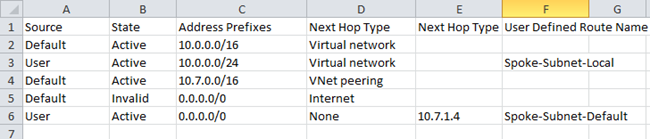
- Select the Download of the effective routes.
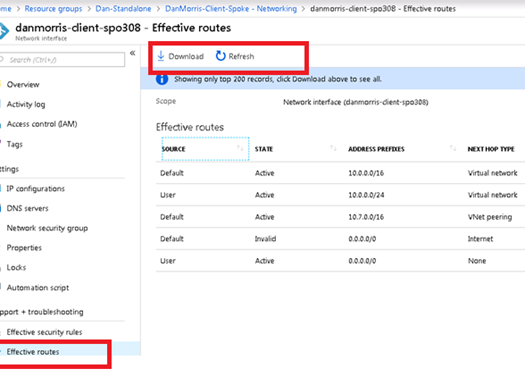
Open the Downloaded route list and confirm the routes are what you may be expecting.
Thank you ,
Dan Morris, Technology Leader, Ottawa Technical Assistance Center